
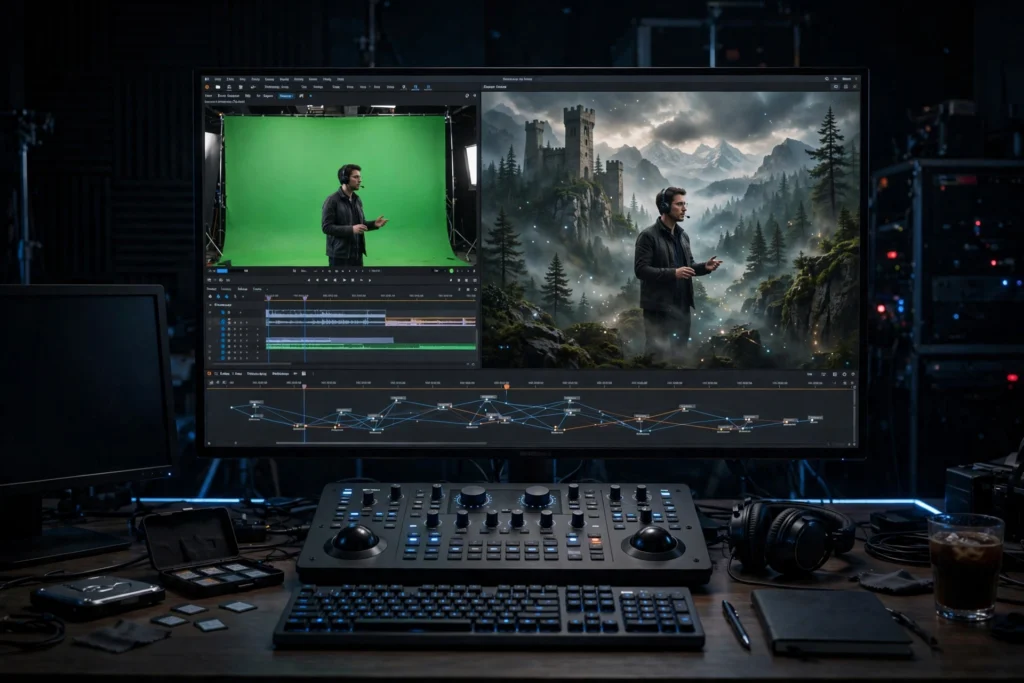
The most convincing AI video work being published right now isn’t pure AI. It’s hybrid: real footage shot on a real camera, with AI-generated elements blended in so cleanly you can’t tell where reality ends. A creature walking through a real street. A product floating in an AI-generated environment. An actor’s real performance with an AI world behind them. This is compositing — the oldest trick in visual effects, now supercharged by generative tools.
Compositing AI footage with live action is a skill, not a button. The generators give you the element; making it sit in the shot is craft. This guide walks through the full pipeline: how to shoot plates that composite well, how to generate elements that match, how to track, color-match, and blend — in After Effects and DaVinci Resolve.
Think composite-first, before you shoot
Every good composite starts before the camera rolls. The difference between a composite that fools the eye and one that screams “fake” is almost always decided in planning, not in post. Almost always. Ask three questions for every shot:
- What is real and what is generated? The actor is real, the background is AI. The street is real, the creature is AI. Write it down per shot.
- What does the AI element need from the plate? Lighting direction, camera movement, lens characteristics, a clean area to sit in. If the AI element needs to be tracked to a moving camera, the plate needs trackable features.
- What is the light doing? Time of day, direction, hardness, color. Every AI generation prompt for the element must describe this light, or the composite will never match.
This is the same planning discipline as the storyboard-first workflow — decisions made before generation are always cheaper than fixes after. Sketch each composite shot: where the element goes, how big it is, what it occludes. A rough sketch saves hours of confused prompting. A napkin sketch. Anything.
Shooting plates for AI integration
A “plate” is the real footage your AI element will live in. Shooting a good plate means shooting with the composite in mind. From the first take.
Lock your camera settings
- Shoot at a fixed shutter angle/speed. Motion blur must be consistent between plate and element. If the plate has heavy motion blur and the AI element is crisp, the composite fails instantly. A 180-degree shutter (1/50 at 25fps, 1/48 or 1/60 at 24/30fps) is the standard starting point.
- Shoot the highest resolution you can. You’ll be scaling, repositioning, and possibly stabilizing in post. 4K plates give you room to work even when the AI element is 1080p.
- Keep ISO low. Noise in the plate that doesn’t exist in the AI element is a mismatch the eye catches. Clean plates composite cleaner.
- Note your lens. Wide lenses distort edges; telephoto compresses space. When prompting the AI element, describe the lens feel (“shot on a 35mm lens, slight wide-angle distortion”) so perspective roughly matches.
Light for the composite, not just the subject
The single biggest giveaway in amateur composites is mismatched lighting. If the plate is lit by warm window light from the left and the AI element looks lit by neutral overhead softbox, no amount of color grading fully saves it. None. Zero.
- Record the light. Take a phone photo of the setup, note the direction and color of key light, fill, and any practicals. You’ll describe this in the generation prompt.
- Match light direction in the prompt. “Warm late-afternoon sunlight from frame left, soft fill from the right” is the kind of prompt detail that makes elements sit naturally.
- Shoot a reference. Put a gray card or even your hand in frame for one take. It gives you a neutral reference for white balance matching later.
- Consider a chrome ball or simple reflections. For reflective AI elements (vehicles, creatures with glossy eyes), knowing the environment’s reflections matters. Even a rough description helps.
Give tracking something to hold onto
If the camera moves, the AI element must move with it — that’s tracking. For tracking to work, the plate needs visible, high-contrast, non-repeating features: textured walls, floor edges, furniture corners. Blank white walls and clear skies are tracking nightmares. Absolute nightmares.
- Don’t “fix it in post” a featureless plate. If the shot needs camera movement and the location is blank, add temporary tracking markers (small tape crosses) and paint them out later — or pick a different location.
- Avoid motion blur on tracking features. Fast pans over detailed backgrounds still track; fast pans over blank backgrounds don’t.
- Shoot a clean plate. One take of the empty background with the same camera move, no actors. It’s your safety net for edge cleanup, holdout mattes, and background reconstruction.
Green screen vs AI-generated backgrounds
Two common hybrid setups, opposite directions. Pick yours:
Real subject, AI background
Shoot the actor on green screen, generate the environment with AI, composite. This is the classic setup and it’s where AI backgrounds shine — you can generate impossible locations cheaply.
- Light the green screen evenly. Uneven green = uneven key = hours of garbage matte cleanup. Two soft lights on the screen, subject well separated from it (less green spill).
- Match the AI background’s light to your subject lighting. If you lit the actor with warm key from the left, the background prompt must say warm key from the left. Generate several background options and pick the one whose light already matches — it’s faster than fixing a mismatch in post.
- Generate the background as image-to-video or a still. For static or slow camera moves, a high-quality AI still with subtle post camera movement (push-in in the edit) often composites more cleanly than a generated video background with its own morphing artifacts.
- Add atmosphere between subject and background. A touch of haze, light wrap, or foreground elements sells depth. Real environments have air; add it.
AI subject, real background
Generate the creature, vehicle, or object with AI; shoot the real environment as the plate. Harder, because the AI element must match real-world physics, light, and camera. Much harder, honestly.
- Generate the element on a simple background. A clean, high-contrast background behind the AI element makes keying or rotoscoping it out far easier. Some creators generate on solid green or black specifically for this.
- Match the camera angle. If the plate is shot from a low angle, the AI element must be generated from a low angle. Describe camera height and angle precisely in the prompt.
- Contact shadows sell everything. An AI creature with no shadow grounding it to the real floor floats visibly. You’ll add or enhance contact shadows in post — plan for it.
Tracking: locking AI elements to the camera
When the camera moves, the AI element must inherit that exact movement. There are three levels. Three:
1. 2D point tracking (simple moves)
For pans, tilts, and simple slides: track 2–4 high-contrast points in the plate, apply that motion to the AI element layer. Both After Effects (built-in tracker) and Resolve (Fusion tracker) handle this well. Fast and reliable for locked-off-feeling moves.
2. Planar tracking (surfaces)
For elements that sit on a surface — a screen replacement, a sign on a wall, an AI texture on a floor — planar tracking (Mocha, bundled free with After Effects; also available in Resolve’s Fusion page) tracks the plane’s perspective as it shifts. This is the workhorse of professional compositing.
3. 3D camera tracking (complex moves)
For handheld or orbiting camera moves with AI elements placed in 3D space: After Effects’ 3D Camera Tracker or Resolve’s Camera Tracker solve the camera’s 3D movement, letting you parent AI elements to tracked nulls in 3D space. More setup, but it’s what makes a creature convincingly walk through a real moving shot.
Practical rule: use the simplest tracking that holds. Don’t 3D-track a shot a 2D track would have solved — every added complexity is added failure surface. And always check the track at full speed, not just frame by frame; tracks that look fine stepped through often swim in motion. They swim. It’s embarrassing. Check at full speed.
Color and light matching: where composites live or die
Roughly eighty percent of a believable composite is color and light matching. The geometry can be slightly off and the eye forgives; the color being off is unforgivable. Remember that ratio — it tells you where to spend your hours.
The matching order
- Black and white points first. Match the element’s shadows and highlights to the plate’s. If the plate’s blacks are lifted (hazy day) and the element’s blacks are crushed, fix that before touching color.
- Color balance second. Use the plate’s neutrals as reference — that gray card or neutral wall. Shift the element until its neutrals agree with the plate’s.
- Saturation last. AI elements are often more saturated than real footage. Desaturate the element slightly toward the plate; oversaturated composites look like stickers.
- Match grain/noise. Add the plate’s grain character to the AI element. AI footage is often suspiciously clean — a little grain unifies everything. This single step does shocking amounts of work.
Light wrap and spill
In real photography, bright backgrounds bleed slightly onto foreground edges (“light wrap”). Composites without it look cut out. Both After Effects and Fusion have light wrap tools — use them subtly on edges facing bright background areas. Similarly, if the plate has a strong color cast (green from grass, orange from sunset), a touch of that color on the element’s shadow side sells the environment. Sells it completely.
Edge blending: the final 5%
Edges are where the eye goes to check if something is fake. Handle them deliberately:
- Feather, but don’t blur. A 1–2 pixel edge feather is usually right. More looks like a glow; zero looks like a cutout.
- Decontaminate edges. Green screen keys leave green fringes; AI-extracted elements leave background-colored fringes. Use edge decontamination (After Effects’ Keylight has it; Fusion has despill tools) to neutralize fringe color.
- Motion blur must match. If the plate’s moving edges blur and the AI element’s don’t, apply matching motion blur (or use the plate’s shutter characteristics as your guide). Pixel Motion Blur in AE or the Motion Blur in Fusion, tuned to the plate.
- Depth of field. If the plate has shallow depth of field and the element sits at a blurred depth, blur the element to match. A sharp element in a blurry world is an instant tell.
The After Effects workflow
After Effects remains the standard compositing tool for this kind of work. A typical AI-element composite:
- Import and organize. Plate on the bottom layer, AI element above, clean plate and references in the project panel.
- Key or roto the element. Keylight for green screen extractions; Rotobrush for everything else. For AI elements generated on clean backgrounds, a simple luma or color key often suffices.
- Track. Built-in point tracker for simple moves, Mocha AE (bundled) for planar surfaces, 3D Camera Tracker for complex moves. Apply to a null, parent the element to the null.
- Position and scale in 3D space if using camera tracking; in 2D for simpler tracks.
- Color match with Curves, Hue/Saturation, and Photo Filter or Lumetri on the element — blacks/whites, then balance, then saturation, per the order above.
- Add grain (Add Grain effect, matched to plate), light wrap, contact shadows (a soft black blurred shape under the element, set to Multiply, animated with the track).
- Edge work: feather, decontaminate, motion blur matching.
- Final check: watch at full speed, on a phone screen, and with fresh eyes. Composites you’ve stared at for hours always look fine to you — take a break and re-check.
The DaVinci Resolve / Fusion workflow
Resolve’s Fusion page is a node-based compositor fully capable of this work, and it’s free (the Studio version adds some advanced tools — check current pricing on Blackmagic’s site). The workflow mirrors AE’s:
- Nodes, not layers. Plate → Merge node; AI element → its own branch (key/roto → color match → grain) → into the Merge’s foreground input.
- Keying: Delta Keyer or Chroma Keyer for green screen; Magic Mask (Studio) for AI-assisted rotoscoping of non-green elements.
- Tracking: the Tracker node (point/planar) or Camera Tracker for 3D solves, all in Fusion.
- Color matching: do it in the Color page on the element before the Merge — use the same blacks/whites → balance → saturation order, with scopes open.
- Finish in Color: one advantage of Resolve — after compositing in Fusion, the whole comp goes through the Color page for a unifying grade and grain, which hides a multitude of sins.
Which tool to choose comes down to what you own and know. After Effects has the deeper third-party ecosystem (more keying and tracking plugins); Resolve gives you edit, composite, grade, and mix in one app. For learning, start with whichever you already use for editing — the compositing concepts transfer. They really do.
What goes wrong (and the fix)
- The element “floats.” Missing or wrong contact shadow. Fix: add a soft shadow under the element, animated with the track, matching the plate’s shadow direction and softness.
- It looks like a sticker. Usually saturation or edge contrast mismatch. Fix: desaturate the element 10–20%, soften edges 1–2px, add grain.
- The track swims. Tracking points were poor or the solve drifted. Fix: re-track with better points, or hand-correct drift with keyframed position offsets every 10–20 frames.
- Light direction is wrong. The element was generated with light from the wrong side. Fix: regenerate with corrected prompt (fastest honest fix) or relight in post with careful curves and directional gradients (slow, imperfect).
- Perspective is off. Element’s camera angle doesn’t match the plate. Fix: regenerate with explicit camera description. Post perspective correction (corner pin warping) works for small mismatches only.
- AI artifacts in the element. Morphing textures, flickering edges. Fix: freeze the best frame and animate it with post camera moves for short shots, or see the generator guide for tools with cleaner output.
The shoot-to-final pipeline checklist
- Plan: sketch each composite shot; decide what’s real and what’s generated.
- Budget: AI generation costs credits per attempt — plan for multiple generations per element and check current pricing in the cost guide.
- Shoot plates: locked settings, recorded lighting, trackable features, clean plates.
- Generate elements: prompt with the plate’s lighting, camera angle, and lens in mind; generate options.
- Prep elements: key/roto, pick the cleanest generation.
- Track: simplest method that holds; verify at full speed.
- Composite: position, then color match (blacks/whites → balance → saturation), grain, light wrap.
- Edge work: feather, decontaminate, motion blur, depth of field.
- Unify: final grade over the whole comp; sound design to sell the physicality.
- Fresh-eyes check: break, then watch like a viewer, not the creator.
Compositing is where AI video stops being a novelty and starts being a production technique. The generators keep getting better at elements; the creators who can seat those elements into real footage convincingly are the ones getting hired. Learn the pipeline once, and every new generator just becomes a better element source for the same craft. Same craft, better raw material — that’s the whole game.