
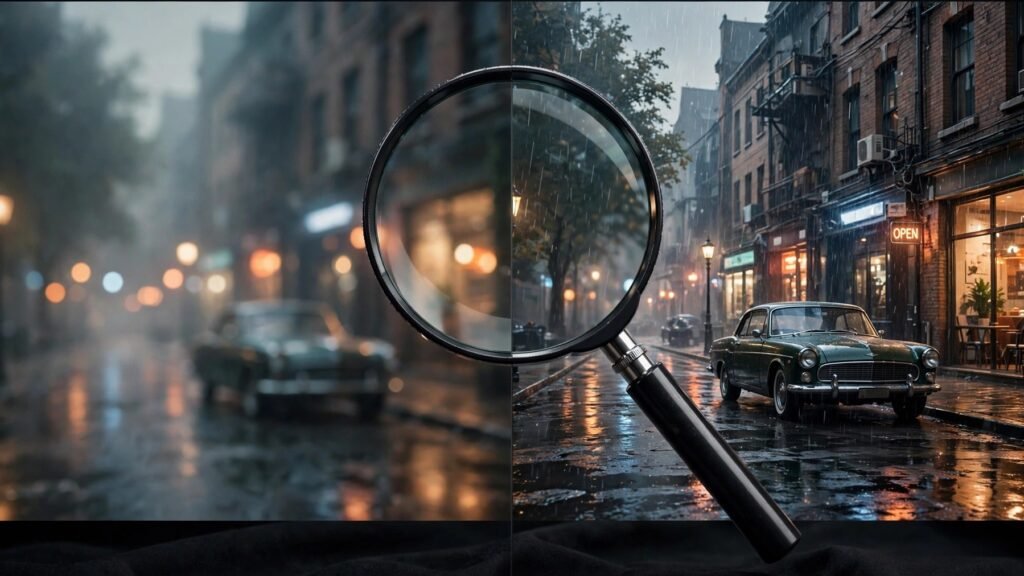
Almost every AI video generator tops out at 720p or 1080p, but clients and platforms increasingly expect crisp 4K delivery. For the past year, upscaling has been a fixed step in my workflow: generate at whatever resolution the model does best, then upscale the final edit to 4K. Done right, the result looks genuinely native — done wrong, you get plastic skin, flickering details, and wasted render hours. This guide distills a year of trial and error into the tools, settings, and order of operations that consistently deliver professional results. Here is everything I have learned about AI video upscaling in 2026: the tools, the settings that matter, and the mistakes to avoid.
Why Upscale Instead of Generating at 4K?
Three reasons. First, most generators produce their best motion and coherence at 720p; pushing them to higher resolutions often degrades the actual video quality even as the pixel count rises. Second, generation cost scales brutally with resolution — a 720p clip plus a good upscale is far cheaper than native 4K generation. Third, upscaling gives you a second creative pass: denoising, sharpening, and detail recovery that the generator never attempted. I treat generation and upscaling as two separate crafts, and my final output is better for it. There is also a practical delivery reason: most client specs and stock platforms list 4K as a requirement regardless of how the footage was made, so an upscaling step future-proofs every clip that leaves your timeline.
The Tools, Honestly Compared
Topaz Video AI — The Professional Standard
Topaz Video AI remains the strongest all-purpose choice in 2026 for creators who prioritize image quality, temporal stability, and control. Its model lineup covers the scenarios that matter: Proteus for careful enhancement with manual controls (my pick for faces, because it hallucinates the least), and the Starlight models for maximum quality when you have the hardware. It handles denoising, deblurring, face recovery, and frame interpolation in one desktop application.
The trade-offs are real: it wants serious hardware (16GB RAM minimum, a strong GPU, plenty of disk for model downloads), and the pricing is premium compared to browser tools. But for client work where quality is non-negotiable, it is what I trust. One caution from my own testing: always run the compatibility check for your exact machine first — several processor and virtualization setups are unsupported, and finding that out after purchase is miserable.
Browser-Based Upscalers — Zero Install
If you do not want to install or maintain anything, browser tools have become genuinely viable for short clips. VanceAI’s video upscaler is the fastest route to a 4K file on any computer, with a free trial and credit-based pricing. Magic Hour bundles upscaling with its wider media workspace, which suits creators already generating and editing in the browser. TensorPix offers one-click cloud enhancement on a subscription. The limits to watch are upload size, clip duration, and output caps — check those against your actual files before committing to a workflow.
Desktop Alternatives Without Subscriptions
Not everyone wants to rent software forever. UniFab keeps a lifetime license option with a 30-day trial, pairing a strong desktop engine with one-time pricing. HitPaw’s enhancer is simpler and preset-driven — less control, but faster to learn. AVCLabs leans toward heavier restoration work and is friendlier to AMD GPUs than most competitors. VideoProc bundles upscaling with conversion and editing, which is efficient if you need all three.
Free and Open-Source: Video2X and SeedVR2
Video2X is free and open-source — zero cost, full control, and your responsibility for setup, model choice, and hardware. For technical creators it is the honest budget answer. SeedVR2 (in 3B and 7B sizes) has become a favorite in the open community for quality-max 4K work, runnable locally in ComfyUI or via API providers at a few dollars per minute of 4K. At moderate volumes, local upscaling on your own GPU is far cheaper than any cloud per-minute pricing.
My Upscaling Workflow, Step by Step
This is the exact order I use, because order matters:
- Finish the edit first. Upscale the final cut, never the raw clips. Upscaling ten source clips instead of one finished timeline multiplies render time and cost for zero benefit.
- Pick the model for the footage. Clean AI-generated clips: a light enhancement model at low strength. Noisy or compressed footage: a dedicated denoising/restoration model first. Faces in close-up: a face-safe model with manual settings — never the aggressive “creative” presets.
- Keep restoration strength low. This is the single biggest lesson from every benchmark I have read and run: a lighter hand beats a stronger model. Heavy settings invent detail that was never there — teeth, text, and fabric patterns are where hallucinations show first.
- Check temporal consistency. Scrub through the upscaled result looking for flicker — detail that shimmers or crawls between frames. Good video upscalers are temporally aware; if you see flicker, switch models or lower the strength.
- Inspect faces, text, and logos at full size. These are the failure points. If a logo’s letters changed or a face drifted identity, reject the upscale and try a fidelity-oriented model.
AI-Generated Footage Has Special Needs
Upscaling AI video is not the same as upscaling camera footage, and this is where generic advice goes wrong. AI clips already contain synthetic detail, so aggressive enhancement stacks invention on invention. I use lower strength settings on AI footage than I would on a noisy phone video, and I always compare against the pre-upscale frame at 100% zoom before accepting the result. For clips I plan to restyle with video-to-video, I upscale after the restyle pass, not before — otherwise the restyle model fights the upscaler’s invented detail.
Images vs. Video: Different Tools
A quick note because creators mix these up: for still thumbnails and keyframes, image upscalers like Topaz Gigapixel or Magnific are the right tools — Magnific’s generative approach is spectacular for hero stills but can reinterpret content, so verify identity and text. For moving footage, always use a video upscaler with temporal processing. Running video frames through an image upscaler one by one produces flicker.
Cost Reality Check
At low volume, browser credit-based upscaling is cheapest because there is no hardware to buy. At moderate volume (tens of minutes a month), a desktop license or local open-source pipeline wins — the per-minute cost drops to electricity. At high volume, API-based upscaling (Topaz via API providers, SeedVR2 endpoints) gives you scale without managing machines, at a few dollars per 4K minute. Match the pricing model to your volume the same way you would with generation — my multi-shot generation guide pairs well with this thinking, since batch workflows multiply both generation and upscaling costs.
Common Upscaling Mistakes I See Creators Make
After reviewing other creators’ workflows for a year, the same five mistakes keep appearing. Upscaling before editing — rendering ten source clips instead of one finished timeline, multiplying time and cost for nothing. Maximum strength settings — the “ultra enhance” preset invents detail that was never filmed, and faces pay the price first. Upscaling AI artifacts instead of fixing them — a morphed hand at 720p becomes a sharper morphed hand at 4K; regenerate the shot instead. Running video through image upscalers frame by frame — this destroys temporal consistency and produces flicker that no client will accept. And skipping the 100% zoom check — always compare the upscaled frame against the original at full size before delivery, because thumbnails lie. Avoid these five and your upscaling step will be boring in the best possible way: predictable, fast, and invisible.
Quick Answers
Can upscaling really make 720p look like native 4K?
On clean AI-generated footage, a good upscaler gets remarkably close — most viewers cannot tell. On heavily compressed or noisy sources, expect “clean 4K” rather than “true 4K detail.” The source quality sets the ceiling.
Will upscaling fix bad AI artifacts?
No — and it can make them worse. Fix morphing hands, broken geometry, and bad motion with region control and regeneration first. Upscaling is a finishing step, not a repair step.
How long does 4K upscaling take?
On a strong local GPU, roughly real-time to a few times real-time depending on the model. In the cloud, minutes per clip. Diffusion-based 4K restoration is the slowest tier — reserve it for hero shots.
Should I upscale vertical Shorts and Reels too?
Yes, but with adjusted expectations. Vertical platforms compress aggressively on upload, so the visible gain from 4K is smaller than on YouTube or client delivery. I still upscale vertical finals to 1080p or 4K because it gives the platform’s encoder a cleaner source to work from, which visibly reduces compression artifacts — but I use faster, lighter models for these, saving the heavy restoration passes for horizontal hero content.
Upscaling is the quiet step that separates amateur-looking AI video from professional delivery. Generate smart at 720p, finish your edit, then upscale once with a light hand — your clients will see the difference even if they never know why. Master this finishing pass and every clip you ship will look like it came from a bigger budget than it did.