
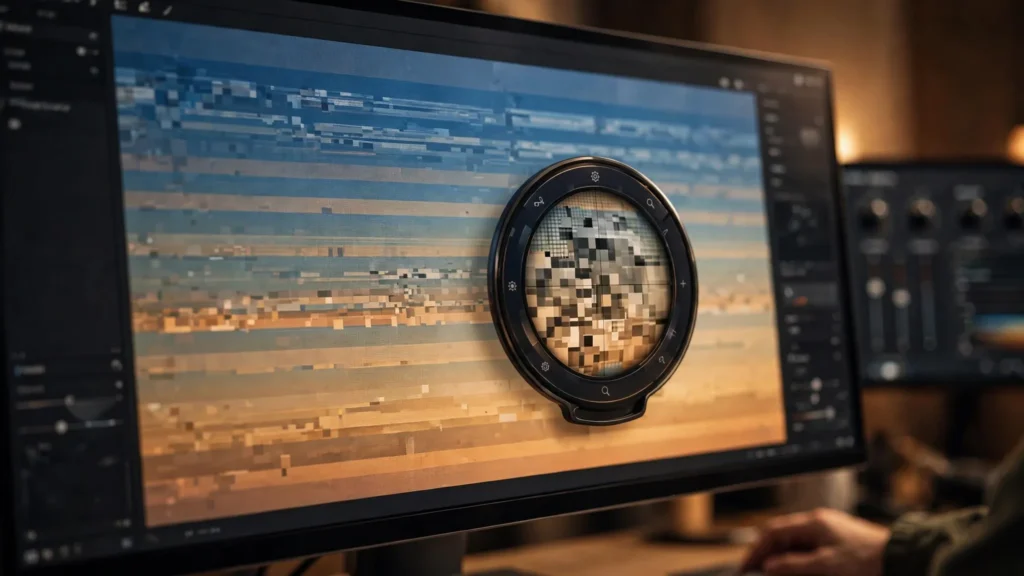
Watch a beautiful AI sunset after a platform chews on it and you’ll see them: ugly steps in the sky where a smooth gradient used to be, squares smearing across a dark scene, faces turning to soup in anything dim. Creators usually blame the generator. Half the time, the generator handed over a decent clip and compression did the damage on the way out.
Understanding banding, blocking, and mush isn’t academic. It’s the difference between blaming the wrong stage of your pipeline and fixing the actual problem. Let’s name the three failures properly, then talk about why AI footage suffers them worse than camera footage — and the generation and export habits that stop most of it.
Know Your Enemy: Three Compression Failures
Banding is what happens to smooth gradients. A sky, a fog bank, a soft studio backdrop, a wall lit by a lamp — anywhere color changes gradually, compression gets cheap with the in-between values and you see visible bands or steps instead of a smooth blend. It screams “compressed” louder than almost anything, and it loves large, clean, slow areas of frame. Exactly the areas AI generators produce by default.
Blocking is the square stuff. Video compression works on blocks of pixels, and when the bitrate can’t afford the detail it’s been given, the blocks become visible — chunky squares, especially in motion, in dark scenes, and around complicated textures like foliage, crowds, smoke, and water. Blocking is the codec admitting defeat in public.
Mush is the quiet one: detail just goes soft and smeary. Faces lose their features at small sizes, fabric becomes plastic, hair becomes a helmet. Mush is what a whole generation of viewers have been trained to call “AI look,” when very often it’s compression look. Some of the footage people mock as sloppy AI was fine until it got squeezed twice — once on export, once by the platform.
Keep one principle in mind for everything below: compression spends its budget on change and detail. Footage that gives it clean, stable, well-exposed material to work with survives. Footage that’s noisy, murky, fine-grained, or chaotic gets robbed first. AI generation, left to its own defaults, produces a lot of the second kind.
Why AI Footage Compresses Worse Than Camera Footage
Camera footage carries natural grain — a fine, random texture from the sensor. Oddly, that grain helps: it gives gradients tiny variations that hide banding steps, and codecs have spent decades learning how real camera noise behaves. AI footage tends to be unnaturally clean in some places and strangely unstable in others. Both traits hurt.
The unnaturally clean part: AI loves a smooth, airbrushed gradient — skies with zero texture, walls like plastic. No grain means nothing to disguise the banding steps, so they print through in perfect visible rings. This is the single biggest reason AI skies fall apart after upload while camera skies survive.
The unstable part: AI detail shimmers. Hair, foliage, fabric texture, background crowds — frame to frame, the fine detail redraws itself slightly. To a codec, shimmer is motion everywhere, all the time, and motion is the most expensive thing to encode. So the codec spends its bitrate describing your shimmering background leaves and has nothing left for the face. Camera footage of the same scene holds still where it should, so the budget goes where viewers look.
Then there’s how creators handle the files. AI clips often arrive already compressed from the tool, then get edited, exported (compressed again), and uploaded (compressed a third time by the platform). Camera workflows usually start from a fat master. Three rounds of squeezing is where mush is born. The remedy is a clean master discipline — one high-quality source file everything derives from. In short: every recompression spends quality you can’t buy back, so count your rounds.
Dark Scenes And Gradients: The Danger Zones
If compression damage had a home address, it would be “dark scene with a gradient.” Night exteriors, moody interiors, sunsets, fog, underwater anything, a single lamp in a black room — these combine every risk factor: low light, smooth tonal transitions, and large flat areas. This is where banding blooms and blocking squares up.
Working habits for danger-zone shots:
- Lift the darkness a little. A scene can read as “night” while sitting higher than true black. Pure black and near-black tones are where codecs abandon you first. In Seedance 2.5 or Veo, I prompt “moody night, deep blue shadows with visible detail” rather than “pitch black,” then darken tastefully in the grade where I control the curve.
- Give gradients something to hold. A touch of atmosphere texture — light haze with visible particles, rain, dust in a light beam — breaks the gradient into encodable information. The prompt words “atmospheric haze, visible texture” have saved more of my sunsets than any export setting.
- Keep the camera honest. Slow moves through dark scenes survive; fast pans across them smear into blocks. If the shot must move fast, let it be brighter.
- Watch skies like a hawk in review. Banding shows first in big sky gradients. Check them full screen, not in a thumbnail. If the sky is banding in your master, the platform will make it worse, never better.
None of this means avoiding dark scenes. Some of the best-performing AI clips I make are moody night pieces. It means lighting them like someone who knows the codec is coming: detail in the shadows, texture in the gradients, exposure a notch above your instinct.
Generation Habits That Survive Compression
Compression-friendliness starts at generation, not export. The habits that survive the squeeze:
- Stable detail over busy detail. Simple, held backgrounds compress beautifully. A wall, a curtain, soft blur. The shimmering marketplace crowd behind your subject is costing you bitrate and you can’t see the cost until after upload. Simpler backgrounds were already the fix for morphing — compression is a second reason to love them.
- Faces lit and at readable size. Small, dim faces are the first casualty of mush. If the face matters, it’s big enough and lit enough that a codec can afford it.
- Motion with intent. Smooth subject motion on a stable frame compresses well. The whole-frame chaos shot — camera spinning, subject running, background scrolling — is the most expensive footage you can make and looks worst after delivery. Save chaos for short bursts.
- Generate clean, finish in the edit. Don’t bake heavy looks into the generation. A neutral, well-exposed generation gives you raw material that tolerates both grading and compression. The crushed, hyper-stylized generation has nowhere left to go.
Resolution plays a supporting role here rather than the lead. A higher-resolution generation downscaled in the edit often lands cleaner than a native low-res one, because downscaling averages away shimmer. That’s part of the generation versus delivery resolution decision — but remember, resolution can’t rescue a dark, busy, unstable shot. Habits first, pixels second.
Export Habits That Stop Making It Worse
By export time, the goal shifts from creating quality to not destroying it. The working rules I follow in Premiere Pro:
- One clean master, platform files derived from it. Never upload an export of an export. Export the master at high quality once; make platform versions from that master, not from each other.
- Give the codec bitrate headroom. If you’re exporting a file the platform will recompress anyway — and you always are — exporting a bit richer than the platform’s playback target means the platform’s encoder starts from better material. Follow current export settings for short-form rather than rules of thumb from forums; platforms adjust their pipelines and settings age.
- Don’t upscale mush and call it 4K. Upscaling soft AI footage for delivery adds file size without adding survivable detail. If the generation is soft, deliver it honestly at a size that flatters it. When upscaling genuinely helps — clean, stable footage that deserves a bigger canvas — that’s a finishing decision covered in when to upscale AI video.
- Avoid re-exporting platform downloads. Downloaded your own posted video to repost elsewhere? That file has already been through the platform’s squeeze. Re-uploading it anywhere starts round three. Go back to the master. Always.
- Check the actual upload on a second screen. Post, wait for processing to finish fully, then watch on a TV or a different phone. The preview in your editor is the best the video will ever look. The phone in daylight is the truth.
Grain: The Cheapest Armour You Can Add
Now the humble hero of this whole article. A fine layer of film grain, added in the edit over your finished clip, does three useful things at once. It breaks up smooth gradients so banding has nowhere to form visible steps — the random texture dithers the transitions the codec wants to quantize into bands. It gives the codec honest, camera-like noise to work with instead of the uncanny clean-plus-shimmer texture AI produces natively; encoders handle grain-shaped information predictably. And it unifies shots — a shared grain layer over a whole scene makes separately generated clips feel like they came from one camera, which quietly helps color mismatches too.
How to use it without making a mess:
- Add grain last, over the graded footage, as an adjustment-layer effect or an overlay in Premiere Pro. Grain under the grade gets mangled by the grade; grain over survives to delivery.
- Keep it fine and subtle. You’re armoring, not making a lo-fi music video. If a viewer can point at the grain, it’s too heavy. On a paused frame it should be barely visible; in motion it should just feel like texture.
- More for danger zones. Dark scenes and sky-heavy shots get a touch more. Bright, clean studio-style shots need very little.
- Same grain across the project. Consistency of texture is part of what reads as “one production.” Pick a setting and reuse it.
Does grain cost bitrate? A little — noise is information. In practice the trade is heavily in your favor: a small bitrate cost buys out the banding that makes viewers call a clip cheap. Test on your own worst gradient: export a sunset with and without a subtle grain pass, upload both unlisted, watch on a phone. That one test teaches more than a month of reading about codecs. Mine ended the debate in one evening.
A final working note: when you spot this damage in a posted video, diagnose before you react. Pause on the worst frame and ask which failure you’re looking at — steps in a gradient, squares in the dark, or general mush — because the three have different fixes and different owners in your pipeline. Banding points at grain and export. Blocking points at bitrate and scene complexity. Mush points at your whole chain of custody. Creators who lump them together as “bad quality” fix none of them; creators who name them fix them one at a time.
So the full picture: banding, blocking, and mush are compression failures with generation causes. Give the codec stable, well-lit, textured material, keep your compression rounds to a minimum with a clean master, export with headroom, and finish with a whisper of grain. The platforms will still squeeze your work — that’s their job. Your job is handing them footage that survives it.