
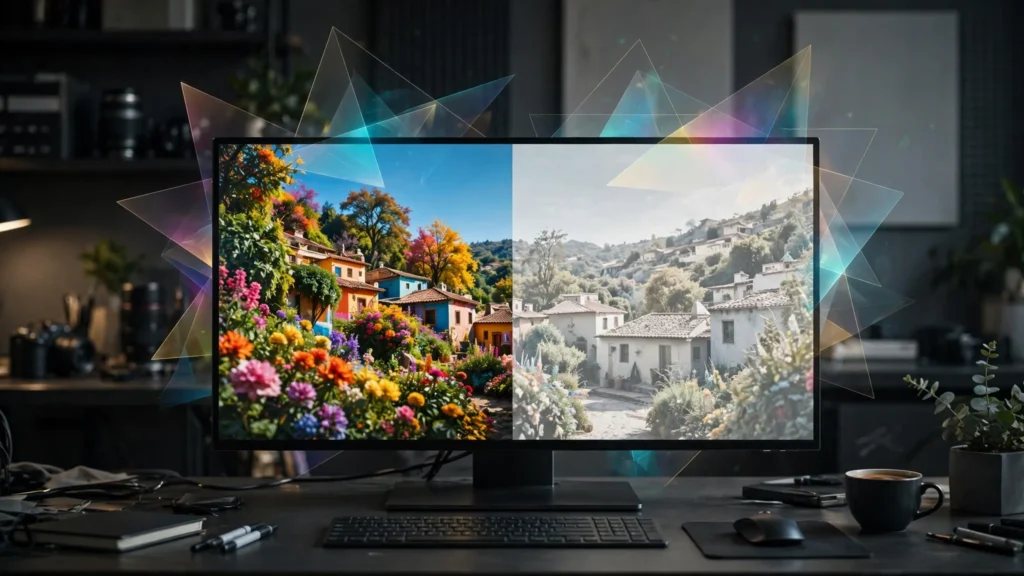
The grade looked right. Rich blacks, clean skin, the little LED fish glowing like a jewel in blue water. Then the video went up, and the published version looked like someone breathed on the lens: blacks turned grey, colours thinned out, contrast gone for a walk. If you’ve dealt with washed-out uploads, you know this exact heartbreak. It’s one of the most common delivery complaints we hear from other creators, and the frustrating truth is that the grade is almost never the problem.
The labels on the colour are.
Colour space sounds like a colourist’s seminar topic, but for short-form delivery it reduces to a practical promise: your file must describe its colours in the language the platform expects, with the right tags attached — or the platform will guess. And its guesses look washed out. This guide covers the usual culprit, why AI footage arrives especially prone to it, the Premiere Pro settings we keep locked for Rec.709 delivery, and when HDR is a deliberate choice rather than an accident waiting to happen.
The Washed-Out Signature And Its Real Cause
Washed-out has a recognisable signature, and learning it saves you from fixing the wrong thing. The image looks lifted: black clothing reads dark grey, shadows feel milky, saturation drops, the whole frame seems viewed through light haze. Importantly, the shapes and sharpness are fine. This is not compression damage (that blocks and bands). This is the picture being interpreted in the wrong colour range or colour space.
The classic mechanism, in plain terms: video colour can be stored using the full range of values (full/data range) or a narrower broadcast range (limited/video range, historically called legal range). Rec.709 HD delivery is normally limited range. If a file’s pixels are written assuming one range but the player or platform reads them as the other, the image stretches or squeezes wrongly. Read limited-range pixels as if they need expanding incorrectly, or fail to expand when needed, and you get lifted blacks and dull contrast: the washed-out look, baked at playback, not in your grade.
SDR Is Still The Short-Form Default
Let’s simplify things as of writing. Short-form platforms are, in practice, an SDR world. Phones technically boast HDR screens, but the feeds, the encoders, and the overwhelming majority of viewing happen in SDR Rec.709. Your TikTok, Reels and Shorts delivery should be SDR Rec.709 unless you have a specific, tested reason otherwise. Check current platform specs if HDR delivery matters to a project, because platform HDR support is real on parts of YouTube and largely beside the point in vertical feeds.
SDR Rec.709 done properly is not a compromise. It’s the container your grade was almost certainly built in, the one your monitor shows you, and the one that survives every platform’s encode with its contrast intact. Most washed-out disasters come from accidentally leaving the SDR reservation: footage sneaking in tagged as HDR or wide-gamut, a sequence set to a space nobody chose, an export that writes the wrong range, or a phone-recorded HDR clip dropped into an SDR timeline and “handled” by defaults.
Our delivery rule is one line: if we did not deliberately choose HDR for a specific YouTube purpose, the project is SDR Rec.709 at every stage (generation, sequence, grade, export, upload), and we verify that rather than assuming it. Deliberate HDR gets its own section below. Accidental HDR gets hunted.
How AI Footage Arrives Colour-Untagged
Camera footage usually arrives with its paperwork in order: colour space, range and gamma tagged in metadata by the camera. AI-generated footage often arrives with thin, inconsistent or missing paperwork. And that’s where our pipeline has to be the adult in the room.
Seedance, Veo and other generators output files whose colour is, in practice, standard SDR-looking video. But “looks like Rec.709” and “is correctly tagged as Rec.709, limited range” are different claims, and tools vary in what they write into the file. When Premiere imports a clip with absent or ambiguous tags, it has to assume an interpretation. Its assumptions are sensible — but sensible is not the same as verified. And across a project assembled from several tools’ outputs, mixed assumptions can leave some clips interpreted slightly differently from others. The editor sees subtle inconsistencies and reaches for the grade. Sometimes grading is the fix. Sometimes one clip is simply being read in the wrong range and no grade will ever make it sit naturally beside its neighbours.
Phone-captured elements add a spicier version of the same issue. Modern phones happily record HDR (Dolby Vision or HDR10-style) by default. Drop that clip into an SDR Premiere sequence without noticing, and depending on settings it may be tone-mapped sensibly or displayed flat and lifted — the washed-out signature, inside your own timeline before export even begins. Behind-the-scenes clips and presenter intros recorded on phones are our usual suspects.
The ingest habit that prevents all of this takes a minute per batch:
- Check clip colour info on arrival. In Premiere, look at the clip’s source/interpretation info (Effect Controls source settings, clip properties, or the metadata panel) for generated and phone clips alike. You are looking for colour space and range being what you expect: Rec.709, and range handled consistently.
- Interpret deliberately when tags are missing or wrong. Premiere lets you override the assumed colour space for a clip (interpret footage / colour space override in source settings). Set untagged generated clips to Rec.709 explicitly so the whole bin shares one interpretation.
- Flag phone HDR on sight. If a phone clip looks flat in an SDR sequence, suspect HDR first. Either convert it properly or re-shoot/record an SDR version for short-form use. Do not grade around an interpretation problem.
- Keep one space per project. Mixed spaces are the enemy. Convert or interpret everything into the project’s Rec.709 world at ingest, then edit.
This pairs with the preparing-sources discipline elsewhere in our pipeline: constant frame rate in, tagged colour in. By the time clips reach the timeline, the two great silent troublemakers (VFR drift and colour misinterpretation) have already been shown the door.
Premiere Settings That Keep Rec.709 Honest
Inside Premiere Pro, keeping SDR delivery honest is less about artistry and more about a small set of settings staying where you put them. Here’s the checklist we run, in order, when a project is created and again before export:
- Sequence colour working space: Rec.709. In sequence settings (and project colour preferences in current Premiere versions), the working colour space for short-form delivery should be Rec.709 (Scene). If a project template inherited Rec.2100 or a wide space from other work, change it now, not after the grade.
- Auto tone map / HDR handling: know your choice. Premiere offers automatic tone mapping for HDR sources in SDR sequences in recent versions. For SDR projects, we prefer interpreting sources correctly at ingest and keeping automatic conversions predictable, rather than letting mixed defaults make per-clip decisions nobody reviewed.
- Lumetri scopes set to the delivery space. Read scopes in Rec.709 terms, with the waveform showing proper limited-range behaviour: blacks near the bottom without being crushed into a blob, highlights with headroom. Grading against the right scope setup is how the approved look stays the approved look on export.
- Export colour settings: Rec.709, and mind the range. In Media Encoder / export settings, confirm the output colour space is Rec.709 and that range handling matches your chain (for typical social H.264 delivery, standard limited/video range output is the expected, platform-friendly choice). The washed-out gremlin most often lives right here, in a full-range export leaving a pipeline that expected limited, or vice versa through an intermediate tool.
- Do not round-trip through careless converters. Quick conversions for captions tools, compressors or chat-app transfers can rewrite range and strip tags. Delivery files go from Premiere (or Media Encoder) to the platform, full stop. Any intermediate step must be audited like an export, because functionally it is one.
- Verify the exported file, not the timeline. Open the export in a fresh player, ideally check its reported colour tags with a metadata tool, and compare blacks and saturation against the timeline at matched size. The export is the deliverable; give it its own approval.
Save all of it as named project templates and export presets so the honest settings reproduce on tired days. Our baseline numbers live in export settings for short-form; the colour rules in this piece are the layer that keeps those numbers meaningful. This colour check belongs in the same pre-publish pass as the rest of our AI video QC checklist, and it starts even earlier in the chain we describe in our prompt-to-final-cut workflow, where sources get interpreted honestly before a single cut is made. When a published video still looks lifted after these checks, the remaining suspect is the platform’s own conversion, which the phone check below helps you identify without guesswork.
HDR: Only On Purpose, Only For YouTube
HDR is not a villain. Deliberate HDR on YouTube, for content shot or graded to use it, can look genuinely better on HDR screens, and YouTube has documented HDR upload support including generating an SDR version for other viewers. The key word is deliberate. HDR as an accident produces washed-out SDR conversions and confusion everywhere else.
Our stance for this workflow is restrictive on purpose:
- Short-form feeds (TikTok, Reels, Shorts): SDR, full stop. The audience, the encoders and the discovery surfaces are SDR-native. An HDR upload buys conversion risk and no audience benefit we can measure.
- YouTube long-form: HDR only when the project was built for it, meaning sources with real HDR range, a properly set HDR grade, correct metadata, and a checked SDR trim/conversion, because many viewers will see the SDR version YouTube derives. If you would not approve that SDR version, you are not ready to upload HDR.
- Never mix by accident. One HDR phone clip in an SDR project gets converted or replaced at ingest. “Mostly SDR” is how washed-out shots hide inside otherwise fine videos.
- AI generations are SDR sources. Our Seedance and Veo outputs are treated as Rec.709 SDR material. We do not fake HDR from them for social delivery; upconverting the container without true HDR grading is precisely how dull, lifted uploads are manufactured.
If a future project genuinely calls for HDR, treat it as a separate delivery with its own tests — not a checkbox at export. And re-verify platform behaviour at that time, since HDR handling across apps and devices keeps moving. For the 99 percent case, the SDR discipline in this guide is the whole answer: one space, tagged right, range right, everywhere.
The Phone Check That Settles Arguments
Colour arguments between creators can burn an hour, because monitors disagree, rooms disagree, and everyone trusts their own screen. One humble test settles most of them: watch the published version on a phone, in the app, next to the export played on the same phone.
Put both on one device so the screen stops being a variable. Same phone, same brightness, same room. Play the export from your files, then the test-uploaded published version. Now judge three things only: are the blacks the same depth? Does the most saturated subject (our glowing fish is cruelly revealing here) hold its punch? Does skin or fur colour sit in the same family? If the export looks right and the published version is lifted on the same screen, the shift happened at platform interpretation or encode — check tags and range on what you sent. If both look lifted on the phone but the timeline looked rich, your monitoring flattered the grade, and the grade needs an honest adjustment. Either way, the argument ends, because the evidence shares a screen.
Frequently Asked Questions
Why Does My Video Look Washed Out After Uploading?
Most often it is a colour range or colour-space interpretation problem, not your grade. If your file’s pixels are written in one range (full) and read as another (limited), or tagged as a wide space like Rec.2020 and displayed as Rec.709 without conversion, blacks lift and saturation drops. Check that your export is Rec.709 with standard limited-range handling, and that no HDR-tagged clip sneaked into an SDR project.
Should I Export In Full Range Or Limited Range For Social Video?
For typical H.264 social delivery, keep the standard video (limited) range pipeline that Premiere and the platforms expect end to end, and be consistent: sequence, export and any intermediate tool must agree. The washed-out look usually comes from a mismatch between stages, not from one range being universally right. Verify your exported file’s tags and compare it against the timeline on the same phone.
Does HDR Upload Improve Quality On TikTok, Reels Or Shorts?
No, in our delivery experience. Short-form feeds are SDR Rec.709 in practice, and HDR uploads mostly add conversion risk, which is how dull, lifted published versions happen. Keep short-form SDR. Reserve deliberate HDR for specific YouTube long-form projects built and graded for it, with a checked SDR version you would approve on its own.
Why Do Phone Clips Look Flat In My Premiere Timeline?
Your phone probably recorded HDR by default. Dropped into an SDR Rec.709 sequence without a proper conversion or interpretation, HDR material renders flat and washed out. Fix it at ingest: interpret or convert the clip deliberately, or record an SDR version for short-form use. Do not try to grade your way out of an interpretation problem; fix the label, then grade.
Tag It Right, Then Grade It
Here’s the order of operations that ends the washed-out era: one colour space per project, Rec.709 SDR for short-form, sources interpreted honestly at ingest, export range verified on the file itself, and a phone check before anything goes public. Do that, and the grade you approved in Premiere is the grade your audience meets. The platform will still compress your video. It just won’t get to reinterpret it.