
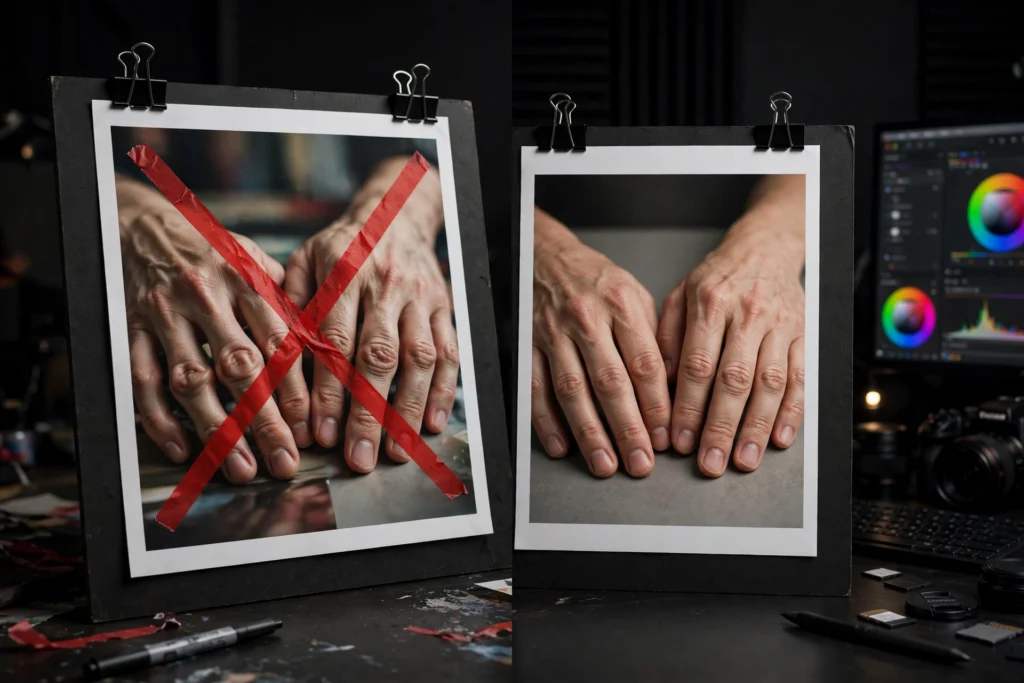
Every working AI video creator has a graveyard of nearly-perfect clips.
The shot that was beautiful — except for the hand with seven fingers. The extra arm growing out of a shoulder. The background rippling like water. Mysterious half-rendered text floating in the sky for no reason at all.
Sound familiar? Here’s the thing: negative prompts are the direct, purpose-built fix for this entire category of failure. And most creators use them at a fraction of their power. Same generic list, pasted into every generation, fingers crossed.
This guide goes past the basics. How negative prompts actually work under the hood. A universal starter list, plus category-specific negatives for faces, hands, backgrounds, motion, and products. When negative prompting backfires — because over-constraining is real, and it’ll wreck a good generation just as fast as a bad one. Which tools support negatives and how. And copy-paste templates you can drop into your workflow today.
You already know what a negative prompt is? Good. This is the guide that makes you dangerous with them.
How negative prompts work, technically
To use negative prompts well, you need a working mental model of what they actually do. Here’s mine. It’s worth the two minutes.
AI video models generate footage through a denoising process. They start from random noise and progressively refine it toward something matching your prompt. And at every step, the model asks two questions. First: “does this look more like what the user described?” Second — when a negative prompt is present — “does this look like what the user banned?”
The negative prompt creates a repelling force in the model’s latent space, pushing the generation away from the concepts you listed. Think of it as magnetic. Your main prompt pulls; your negative prompt pushes.
This mechanism explains both the power and the limits of negatives. They’re powerful because the model’s most common failures are also its most statistically predictable outputs. Deformed hands, morphing faces, watermarks — patterns the model has seen millions of times. Which means they’re patterns it can be steered away from reliably.
And the limits? The repelling force is conceptual, not surgical. Telling the model “no blurry” doesn’t sharpen a specific region. It biases the entire generation toward sharper-looking outputs. Negatives shape tendencies. They don’t perform corrections.
One more technical point that actually matters in practice: negative prompts compete with the main prompt for the model’s attention. Every term you add dilutes the others slightly. Read that twice.
A negative prompt with thirty terms is not thirty times stronger than one with three. It’s a diffuse cloud of mild repulsions, and the model may effectively ignore the terms that matter most to your shot. The exact ones you needed.
This is why short, targeted negative lists consistently outperform long generic ones. Precision beats volume. Every single time.
The universal negative prompt starter list
Okay — despite the warning above about long lists, there is a core set of defects so common across all AI video models that a version of this list belongs in nearly every generation. Think of it as the default filter. The artifacts appear often enough, across enough tools, that banning them is always worth the tokens:
deformed, distorted, morphing, extra limbs, missing limbs, extra fingers, deformed hands, fused fingers, warped face, asymmetric eyes, flickering, jitter, warping background, unstable geometry, watermark, logo, text overlay, subtitles, blurry, low quality, pixelated, oversaturated, washed out
Save this as a snippet. Paste it into every generation’s negative field as your baseline. Then — and this is the part most creators skip — add the shot-specific negatives from the categories below.
The universal list handles the model’s general failure modes. The targeted terms handle your specific shot’s risks. Both layers. That’s the system.
Negative prompt examples by category
Faces and close-ups
Faces are where viewers look first. And where models fail most visibly. For any shot where a face is prominent:
asymmetric eyes, cross-eyed, distorted teeth, missing teeth, plastic skin, waxy skin, uncanny valley, melting face, shifting facial features, duplicate faces
Notice “shifting facial features” and “melting face”. Those two target the temporal failure — the one where a face looks fine in frame one and deforms by frame twenty. See the difference?
Static-image negative lists often miss motion-specific defects. Video can’t afford that.
Hands and bodies
Hands remain the single most failure-prone subject in generative video. Honestly? They probably always will be. For shots with visible hands:
deformed hands, extra fingers, missing fingers, fused fingers, mitten hands, detached limbs, broken joints, impossible anatomy, elongated arms
For full-body shots, add: disproportionate body, floating torso, disconnected head, extra legs. If the shot doesn’t need hands visible, the strongest negative of all is compositional — frame the shot to avoid them — but when they must appear, these terms meaningfully reduce the discard rate.
Backgrounds and environments
Background defects are subtler than hand defects. But just as damaging to professional work. A warping wall behind a talking head destroys credibility instantly:
warping background, morphing architecture, melting walls, unstable perspective, flickering lights, floating objects, disappearing objects, shifting shadows
For scenes with text in the environment (signs, storefronts, screens): gibberish text, misspelled text, distorted letters, fake signage. AI models cannot reliably render legible text in most cases; if the shot requires readable text, plan to add it in post-production rather than generating it.
Motion and camera
Motion artifacts are unique to video. They need their own negatives:
judder, stuttering motion, teleporting subject, sliding feet, moonwalking, unnatural gait, sudden zoom, camera shake, motion sickness, frame skipping
“Sliding feet” and “moonwalking” target the specific failure where a walking character glides instead of stepping. One of the most common tells of AI-generated footage. If your shot involves walking, running, or dancing, these terms earn their place.
Products and commercial work
Commercial shots have zero tolerance for the defects that casual content survives:
warped logo, distorted branding, misspelled text, deformed packaging, bent product, melted product, incorrect colors, cheap look, plastic render
“Incorrect colors” matters because brand colors are contractual in commercial work. A soda can in the wrong red is a reshoot. Full stop.
When color accuracy is critical, pair these negatives with explicit color descriptions in the main prompt (“the exact crimson red of the label, consistent across all frames”).
When negatives hurt: the over-constraining problem
Here’s what the basic guides don’t tell you: negative prompts can damage good generations. Every term you add is a constraint, and constraints interact. Three failure modes come from over-constraining:
1. The sterile generation
Pile on enough negatives — no grain, no blur, no asymmetry, no noise, no distortion of any kind — and the model converges on the safest, most average output possible. Technically clean. Artistically dead.
The footage looks like it was rendered by an insurance company.
If your generations are coming back technically fine but lifeless, your negative list is probably too aggressive. Remove the aesthetic terms first (“ugly,” “boring,” “dull” — the model doesn’t share your taste anyway) and keep only concrete artifact terms.
2. The contradiction trap
Negatives that contradict the main prompt create a model that doesn’t know what to do. Main prompt says “crowd cheering in a stadium,” negative says “people, faces, crowd.” Main prompt says “rainy night,” negative says “water, wet, reflections.” See what I mean?
The model tries to satisfy both, usually by producing something muddy and indecisive.
Audit rule: read your negative list against your main prompt before every important generation. Any term that could plausibly describe something your shot needs must go.
3. The attention dilution problem
Covered this in the technical section. Worth repeating anyway, because it’s the rule people violate most. Thirty negative terms means each term gets roughly one-thirtieth of the model’s negative attention.
The five terms that actually matter for your shot drown in twenty-five generic ones.
The fix is tiered negatives: keep the universal list short (under a dozen terms), and add only the 3–5 targeted terms for the specific shot. A focused list of fifteen beats a sprawling list of forty every time. Every time.
Tool-by-tool negative prompt support
Negative prompt support varies significantly across tools. And the mechanism matters — a dedicated field behaves differently from terms appended to the main prompt. Here’s the landscape as of late 2026 (interfaces change; verify against your tool’s current docs):
- Dedicated negative field: Several tools provide a separate input box labeled “negative prompt” or “things to avoid.” This is the cleanest mechanism — the model treats the two inputs distinctly. Pika has historically offered this; many Stable Diffusion-based video workflows (ComfyUI, AnimateDiff pipelines) support it natively. If your tool has the field, use it — don’t append negatives to the main prompt.
- Appended syntax: Some tools expect negatives within the main prompt using special syntax — brackets, prefixes like “negative:” or “–no” flags. The behavior is roughly equivalent when implemented well, but syntax errors silently fail (your negatives get treated as positive prompt text, which is worse than useless). Copy the exact syntax from the docs; don’t guess.
- No explicit support: A few consumer-facing tools don’t expose negative prompts at all, handling artifact reduction internally. On these tools, the equivalent technique is positive framing — instead of “no blurry,” write “sharp focus, crisp detail” in the main prompt. It works through the same steering mechanism in reverse: describing the desired quality repels its opposite.
- Strength/weight controls: Advanced interfaces let you weight individual negative terms (e.g., “deformed hands:1.3”). If your tool supports this, weight the 2–3 defects you most need to avoid and leave the rest at default. Weighted negatives are the precision instrument; unweighted lists are the blunt one.
When evaluating a new tool, negative prompt support is a legitimate selection criterion for professional work. A tool without it isn’t disqualified — but you’ll spend more generations discarding artifacts. Factor that into the real cost. The tool comparison guide covers the broader selection criteria.
Copy-paste negative prompt templates
Four ready-to-use templates. Save them as text snippets. Combine as needed: universal + one category per shot.
Template 1: Universal baseline (every generation)
deformed, distorted, morphing, extra limbs, deformed hands, warped face, flickering, jitter, warping background, watermark, logo, text overlay, blurry, low quality
Template 2: People and characters (add to baseline)
asymmetric eyes, distorted teeth, plastic skin, melting face, shifting facial features, extra fingers, fused fingers, disproportionate body, unnatural gait, sliding feet
Template 3: Environments and products (add to baseline)
morphing architecture, unstable perspective, floating objects, gibberish text, misspelled text, warped logo, deformed packaging, incorrect colors
Template 4: Camera motion (add to baseline for moving-camera shots)
judder, stuttering motion, teleporting subject, sudden zoom, camera shake, frame skipping, motion blur overload
Making negatives part of your system
The creators with the cleanest output don’t think about negative prompts per generation. They built the habit into their prompting system. The practical setup: save the four templates above as snippets. A notes app, a text expander, your tool’s saved-preset feature if it has one.
Every generation gets Template 1 plus the relevant category template. Review the combination against the main prompt for contradictions — ten seconds that prevents the contradiction trap. Regenerate rates drop.
And the failures that remain are the interesting kind: composition and storytelling problems, not six-fingered hands.
One final note. Negative prompts are a filter, not a fix. They reduce the frequency of artifacts; they don’t eliminate them. And they can’t rescue a weak main prompt.
The main prompt describes the shot — subject, action, camera, setting, lighting, mood, in that order (see the anatomy of a great prompt). Negatives are the quality-control layer on top. Get the shot right first, then keep the artifacts out.
That’s the whole discipline. And honestly? It’s worth more than any single trick in this guide.
Reading your failures: which negative to add
The fastest way to build negative-prompt skill is to treat every discarded clip as a diagnosis. Don’t just hit regenerate. Look at what went wrong. Name the defect precisely. Add the matching term.
This feedback loop, repeated across dozens of generations, builds an instinct that no list can replace. Here’s the diagnostic pattern for the most common failures:
- Faces change between frames. The defect is temporal, not spatial — the face is fine in stills but drifts during motion. Add shifting facial features, morphing face, unstable identity. If it persists, the problem may be too much motion in the prompt; simplify the action.
- Background “breathes” or ripples. The model is uncertain about static geometry. Add warping background, unstable geometry, morphing architecture. This defect worsens with camera movement — static cameras hide it, push-ins reveal it.
- Objects pop in and out. Add disappearing objects, floating objects, flickering. Often caused by the prompt describing more elements than the model can track; consider removing one background element from the description.
- Motion looks “swimmy” or dreamlike. The model is interpolating uncertainly between poses. Add stuttering motion, jitter, unnatural movement. Reducing the described action to a single simple verb often fixes what negatives can’t.
- Everything is fine except one detail. A single deformed hand in an otherwise perfect clip. Don’t overhaul the whole negative list — add the one targeted term (deformed hands) and regenerate with the same seed if your tool supports it. One-variable changes, always.
Keep a running log of defects you’ve seen and the terms that fixed them. After a month, you’ll have a personalized negative library tuned to your tools, your subjects, and your style. More valuable than any generic list — because it targets the failures you actually encounter.
Negatives for specific visual styles
Different styles have different characteristic failures. And the negative list should adapt:
- Photorealistic: The risk is the uncanny — almost-real but wrong. Emphasize plastic skin, waxy skin, uncanny valley, CGI look, video game render, cartoonish. You’re steering away from the synthetic.
- Cinematic film look: The risk is digital cleanliness. If you want grain and texture, don’t negate them — negate their opposites: overly sharp, digital clean, smartphone video look, flat lighting. And keep “film grain” out of the negatives; some creators accidentally ban the texture they want.
- Animation/stylized: The risk is style drift toward realism. Add photorealistic, live action, realistic skin texture when the model keeps rendering your cartoon as a photograph. Negatives can lock a style in place as effectively as positives.
- Dark/moody scenes: The risk is muddiness. Add washed out, flat lighting, gray blacks, noise overload — but keep crushed blacks out unless the shadows are actually clipping, since deep shadows are usually the point.
The principle: negatives should describe the failure modes of the style you’re targeting, not a generic badness list. A horror short and a product ad need different guards. Build style-specific variants of your templates and the quality jump is immediate.