
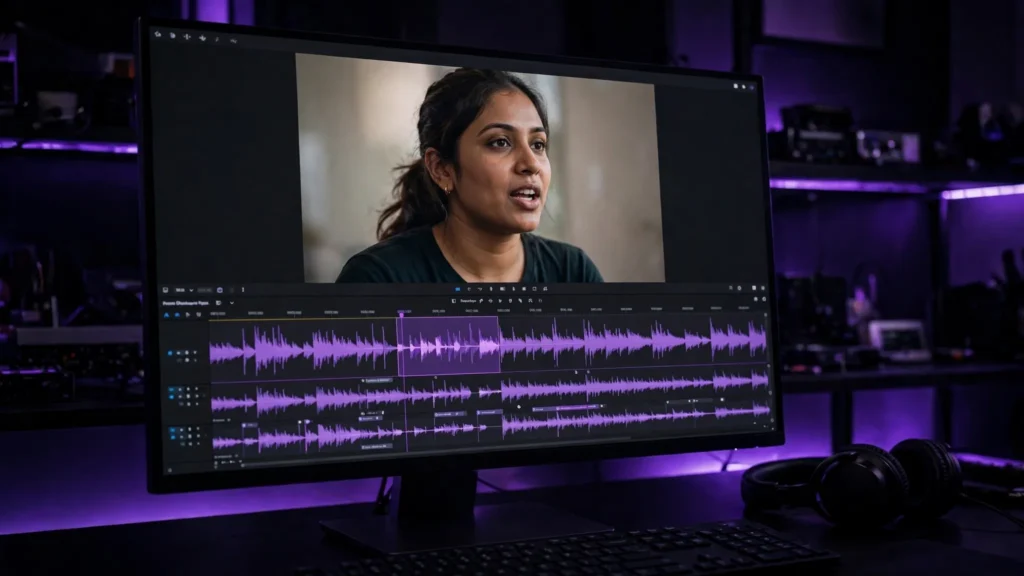
A shot can be soft. The picture can even be grainy. But the second a character opens their mouth and the words don’t land on the lips — the whole clip falls apart. Feels fake. Instantly. Here’s the thing: we’re hardwired to stare at mouths when someone talks, so lip-sync is the detail viewers forgive last. And the good news? You don’t need one perfect tool anymore. You need the right route for the shot you’re actually making.
How AI Lip-Sync Actually Works
Most lip-sync systems work backwards from what you’d expect — they start with the audio, not the picture. They chop speech into tiny sound units, then reshape the mouth area frame by frame so the visible shapes land near those sounds. A clean voice track, a face mostly toward camera, a head that isn’t whipping around — that combination gives the system something solid to read.
Which is exactly why the same tool looks convincing in a calm medium close-up and falls apart in a laughing profile shot. It’s not being lazy. It’s running out of clean information, right? Face too small in frame, turned away, hand over the mouth, three expressions flashing by in two seconds — no lip-sync pass on earth can invent detail that isn’t there.
The Two Routes: Generate It Talking, or Fix It in Post
The first route: generate the talking shot inside the video model itself. This is where native audio changed everything. Veo’s strength is dialogue that arrives with the picture, while Seedance generates sound together with the image instead of treating it as an afterthought. Kling has also built a real reputation for multilingual lip-sync in image-to-video work. When the performance starts inside the generator, the head movement, the expression, the mouth — they usually belong to the same moment. That’s the whole appeal.
The second route is post: you already have the footage, you already have the voice, and a dedicated lip-sync tool reworks the mouth to fit the audio. This one’s better when the visual take is the one you love, when the voice got recorded later, or when you’re dubbing the same shot into another language. But it’s also the route that needs the most judgment. A mouth can be technically matched and still feel wrong — say, if the face is acting a totally different emotion from the voice.
My rule is simple. If the character was created for this line, generate the talking shot. If the shot already exists and only the mouth is off, fix it in post. Do not rebuild a good scene just because some tool promises a one-click miracle. That’s how you burn a weekend.
What to Check in Any Lip-Sync Tool
Forget the demo reel for a minute and check the boring stuff. It’s the boring stuff that decides whether the tool survives real work:
- Inputs. Does it need video plus audio, a still image plus audio, or only text? Each input type drags you into a different workflow.
- Language fit. A tool that shines in English can smear softer consonants in another language. Test your actual language, not theirs.
- Face angle. Front and three-quarter faces are the safe zone. If your character performs in profile, test that before building a whole scene around it.
- Export quality. Some tools sync beautifully, then hand you back a small or watermarked file. Check the export before the free trial seduces you.
- Commercial terms. Client work, ads, monetized channels — not the same as a test clip. Read what the plan actually allows.
- Consent. Never sync a real person’s face or voice unless you have the right to use both. This is not a grey area worth dancing in.
I keep the same shortlist habit for lip-sync that I use for generators: if a tool can’t show me export terms, language support, and face limits up front, it doesn’t get near a paid project. The generator comparison in the AI video generators guide is a better starting point than any single-feature tool list, honestly.
The Workflow That Holds Up
Start with the line, not the render. Record or generate the cleanest voice you’ve got, because lip-sync cannot rescue mumbled audio. Keep lines short. A six-second sentence with one thought is way easier to match than a breathless paragraph — and it cuts better too.
Then build the shot around the mouth. Medium close-up. Slow head movement. No hands crossing the face. No drinking, no chewing, no laughing, no shouting — unless the shot is specifically built as that stress test. If the character has to turn, let the turn happen between lines, not in the middle of the important word.
Then check the hit sounds. Lips must meet for b, m, and p sounds. The mouth should open honestly for wide vowels instead of smiling through everything. If those anchors land, viewers will forgive small imperfections everywhere else. And finish the voice in the mix with the rest of the scene — a perfectly synced line sitting on dead silence still sounds pasted on. This is where the sound design workflow matters more than another re-render.
Where Lip-Sync Still Falls Apart
Profile shots are failure number one. Overlapping speakers, whispered lines with weak mouth movement, screams, laughter, fast speech over a moving camera — all of them are trouble. Teeth are another quiet problem: the mouth can match the sound while the teeth slide like they’re not attached to the person.
When a shot keeps failing, stop feeding it to the same tool. Change the shot. Move the line off-screen. Cut to the listener. Put the important sentence on the calm take and let the wild performance carry the reaction. Editors have hidden weak sync this way for decades — AI didn’t retire the trick.
Look, lip-sync isn’t a button. It’s a chain: clean audio, a face the system can actually read, a shot designed for speech, and the discipline to cut around the moments that still look wrong. Build that chain and dialogue scenes stop feeling like a gamble. If you’re picking the base generator first, start with the Veo guide for native dialogue or the Seedance 2.5 guide for picture and sound generated together — then decide whether your scene even needs a post pass.