
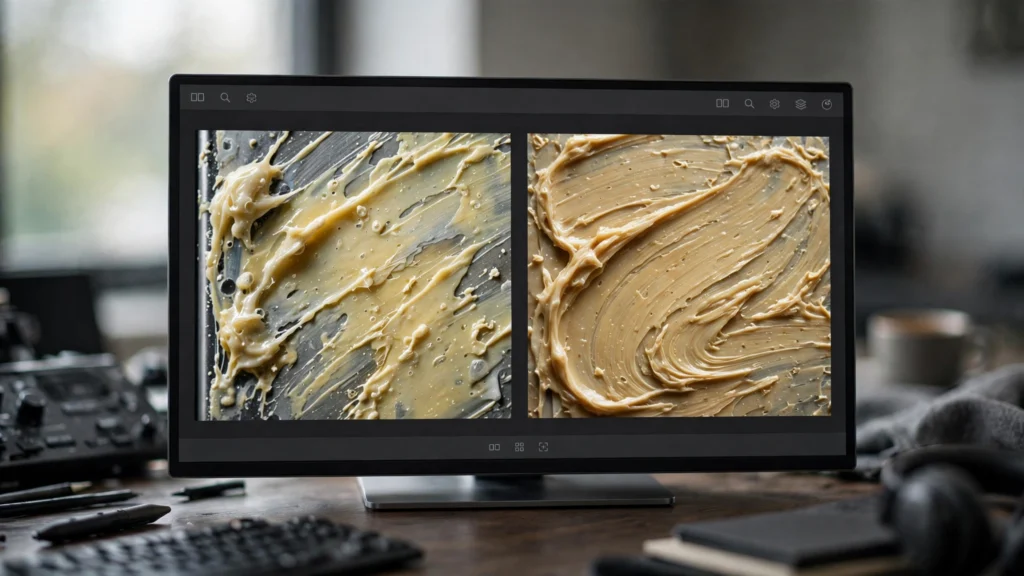
Upscaling is sold as improvement, and sometimes it genuinely is. But every AI editor has watched an enhancer take a decent clip and return it wearing halos, invented skin texture and a face subtly rebuilt by a model with opinions.
We upscale in our finishing workflow too — Topaz-class enhancement is standard practice for a reason — but we treat it as a second generation, not a polish. This guide is about reading what enhancement actually does to your footage, recognising its artifacts before your audience does, and knowing when the original simply wins.
Enhancement Is Re-Generation With Confidence
Start with the honest mental model. An AI upscaler does not recover the detail that was in your scene; no such detail exists. It examines your frames and invents plausible high-resolution detail, the same way your video model invented the frames in the first place.
Upscaling is generation wearing a lab coat.
That is not a reason to avoid it. It is a reason to judge the output like a generation: sceptically, at full size, in motion, against the source. The enhancer is most confident exactly where it should be doubted — faces, hands, text, fine repeating patterns — because those are the regions its training taught it to rebuild aggressively.
And unlike your video model, which at least worked from your prompt, the enhancer works from a compressed, finished clip with all your earlier problems baked in. Every flicker, patch and morph in the source is raw material for invention. Enhance a flawed clip and you don’t remove the flaws; you give them higher-resolution costumes.
So the first discipline is ordering. Upscale late, after stabilization, after trims, after the rescue work — the sequence we follow in our prompt to final cut workflow. The decision of whether a shot deserves enhancement at all is covered in our companion, when to upscale AI video. This article assumes you have decided, and focuses on what to check when the enhanced file comes back.
Halo Edges And Crunch
The most common enhancement artifact is also the easiest to spot once you know it: halos. Bright or dark outlines appear along high-contrast edges — a pale fringe around a head against the sky, a dark seam around a jaw. The enhancer sharpens edges by exaggerating them, and exaggeration, pushed, becomes a visible contour that no camera ever drew.
Crunch is its cousin. Over-sharpened regions turn brittle: skin gets a gritty, sandpapery texture, fabrics go wiry, foliage crackles. It tends to arrive together with halos, both children of aggressive detail processing. Check for them where contrast is honest — skies meeting roofs, faces against plain walls, dark hair against light backgrounds.
- Look at edges at delivery size, then at 200 percent. Halos that shout at 200 percent may vanish at delivery size. Halos visible at delivery size will read as a cut-out effect to every viewer.
- Check the moving version. Static frames forgive; in motion, crunchy texture boils because the enhancer invents slightly different grit each frame.
- Lower the model’s aggression before abandoning it. Most enhancement tools let you temper strength or choose a gentler model. Crunch is usually a settings problem before it is a tool problem.
If a shot’s enhancement is all halos, the source was probably already at the resolution the shot needed. Not every clip benefits, and a clean 1080p original beats a crunchy fake 4K every time it matters. Every time.
Texture Hallucination: Detail Nobody Filmed
Given a smooth forehead, an enhancer may invent pores. Given a plain wall, it may invent plaster texture. Given gravel, it invents better gravel than any camera saw. This is texture hallucination, and it sits on a spectrum from helpful to quietly dishonest-looking.
Helpful hallucination reads as realism. The wall gains subtle texture that matches its light, and suddenly the shot looks captured. Viewers cannot tell which detail was real. This is enhancement at its best and it is genuinely valuable on the smooth, rendered-looking footage we discussed needing texture.
Where it turns: repeating patterns. Brick courses gain extra rows. Keyboard keys sprout letters. Crowd scenes grow faces in the distance that were heads a moment ago. Books on a shelf develop almost-text, the enhancer’s cousin of the generator’s gibberish — and for the same reason, checking any text-bearing regions after upscaling is non-negotiable. Our habit is to re-run the pause-frame text check on the enhanced version exactly as we did on the source.
- Compare one frame, side by side, source against enhanced. Ask a single question: did it clarify what was there, or add what wasn’t? Clarify is a pass. Add is a judgement call.
- Skin deserves the closest look. Invented skin detail at the wrong scale — pores too large, texture too uniform — reads instantly as synthetic, worse than the smooth original.
- Check busy regions in motion. Hallucinated texture that repaints each frame shimmers. If a “detailed” region boils, the enhancer is guessing per frame and the shot will flicker in a new, sharper way.
Face Models Finding Faces Everywhere
Face-enhancement models are the double-edged part of the toolkit. Affected by a dedicated face model, a soft generated face can gain convincing structure — clearer eyes, defined features. These models are also pattern-hungry in a way that should make you careful: they find faces the way the rest of us find faces in clouds.
The failures are specific. Patterns in fabric, foliage or wallpaper get subtly face-ified — a knot in wood gaining eye-like shading, a crowd blob resolving into an almost-face staring out of the scene. Primary faces get over-built: eyes sharpened past the focus of the rest of the shot, features nudged toward the model’s idea of a face, which can quietly shift identity.
On footage where we fought for character consistency across a series, an aggressive face model can undo the fight in one pass. One pass! After all that work keeping the character the same across episodes. So yeah, we’re careful here.
- Check the hero face against the source for identity, not just quality. Sharper is not better if it is slightly someone else.
- Scan backgrounds for found faces. Clouds, crowds, curtains. Once you see one, you will check forever.
- Reduce face-model strength on group shots. The model spends its invention across every face-like region. Background people become eerily rendered while your lead goes soft — the opposite of the lens hierarchy you want.
Treat face enhancement like a strong cast member: brilliant in the right measure, scene-stealing in the wrong one. Our generation-side face workflow in fixing ugly faces in AI video and enhancement-side face work obey the same rule — the person must remain the person.
Temporal Smearing Between Frames
Single-frame comparisons miss enhancement’s slipperiest artifact: what happens between frames. Some enhancers process frames with limited awareness of their neighbours, producing detail that swims. Others lean on temporal information and smear fast motion — a waving hand trailing invented texture, a turning head dragging its features a frame behind.
You catch both in motion or not at all. Our check is a short loop of the busiest three seconds in the shot — fastest subject movement, busiest background — played repeatedly while looking anywhere except the subject. Smearing announces itself at the edges of your attention: backgrounds that lag, details that arrive late, motion that feels like it is moving through syrup.
- Fast pans are the stress test. Invented detail cannot keep up with a pan; smearing and repainting show immediately.
- Occlusions reveal smear. Watch objects pass behind foreground elements. Enhancers often fumble the reveal, leaving a smudge where the object re-emerges.
- Compare the cut points. If your edit cuts mid-motion, check the exact frames either side of the cut in the enhanced version. A smeared frame at the cut point can read as a glitch.
Temporal problems are the strongest argument for enhancing the edited clip rather than long source generations. Short, finished sections — exactly the frames the audience will see — get your full inspection, and the enhancer spends its effort where it counts. That, plus frame interpolation for smooth AI video where motion smoothness is the goal, ordered correctly — stabilize, interpolate if needed, enhance, then inspect — keeps each tool doing the job it is actually good at.
The A/B Discipline: Original Always Wins Ties
All of this collapses into one working rule we enforce in the edit bay: the enhanced version must beat the original clearly, or the original ships. Ties go to the source. Always.
The bias exists because enhancement failures are subtle and original failures are familiar. You know exactly how your source clip is flawed; the enhanced version can look impressive in a still while carrying three artifacts you have not spotted yet. A tie in apparent quality means the version with unknown flaws loses to the version with known flaws you already decided you could live with.
Practically, we A/B like this. Same monitor, same size, both at delivery resolution. The busiest three seconds, the hero face, and one text-bearing region if there is one. Watch each pair twice — once for the subject, once hunting artifacts. Then decide per shot, not per project; enhancement quality varies shot by shot within the same render queue, and batch approval is how one smeared take sneaks through inside nine good ones.
Our AI video QC checklist carries a dedicated post-enhancement pass for exactly this reason.
- Keep originals one bin away. Never overwrite source clips with enhanced versions. Storage is cheaper than regret.
- Note per-shot verdicts. A shot rejected for crunch today may accept gentler settings tomorrow. Decisions you can see are decisions you can revisit.
- Ship the honest version. If the team cannot agree whether enhancement helped, it didn’t help enough.
Frequently Asked Questions
Why Does Upscaled AI Video Look Crunchy?
Usually the enhancement model’s detail or sharpening strength is set too aggressively for the source. Lower the strength, choose a gentler model, or accept the original resolution — crunch is a settings problem more often than a footage problem.
Can Upscaling Fix A Low-Quality Generation?
It can sharpen it, but it sharpens the flaws along with everything else and invents detail around them. Fix flicker, warping and morphing first at native resolution, then upscale the rescued shot and inspect it again.
Does AI Upscaling Change Faces?
Face models can, yes — features get rebuilt toward the model’s idea of a face, which can shift identity and find face-like patterns in backgrounds. Always compare the enhanced hero face against the source for sameness, not just sharpness.
Should I Upscale Before Or After Editing?
After the edit is locked, on the exact frames being delivered. You inspect less footage, the enhancer’s effort lands where the audience looks, and any artifact it introduces is caught in the version that actually ships.
Enhance Like A Sceptic
Enhancement is a powerful second generation, and it should be directed like one: clear instructions, modest aggression, and a ruthless review of what comes back.
Check the edges, question the texture, guard the faces, watch it move. And keep the original within reach with the standing rule that it wins every tie. The goal was never the bigger file. It was the more believable shot — and sometimes, honestly, the believable shot is the one you already had.